
What Are the Top Types of Office Equipment in 2026?
Office equipment in 2026 means more than desks and computers. It includes the tools people use to focus, collaborate, and keep daily work moving. The right mix may include laptops, monitors, docking stations, video-conferencing systems, printers, ergonomic chairs, and dependable network hardware. Small details count.
Market data helps explain why these choices matter. IDC reported that worldwide PC shipments reached 262.7 million units in 2024, a 1% increase from 2023. That modest rebound points to continuing demand for computers, though shipment totals alone cannot predict what each office needs. Microsoft’s 2024 Work Trend Index found that 75% of knowledge workers surveyed used AI at work. For equipment planners, that trend makes capable computers, clear displays, and reliable meeting-room technology increasingly relevant.
This guide examines the leading types of office equipment expected to matter in 2026, with practical uses and selection considerations. It looks beyond purchase price to reliability, comfort, energy use, and compatibility with hybrid work. A sharp monitor can make spreadsheets easier to read; a poorly placed webcam can weaken a meeting. Still, there is no universal setup. Survey findings describe broad patterns, not every workplace, and technology priorities can change quickly. The best equipment list starts with real tasks, employee feedback, and a realistic budget—not a fashionable product list.
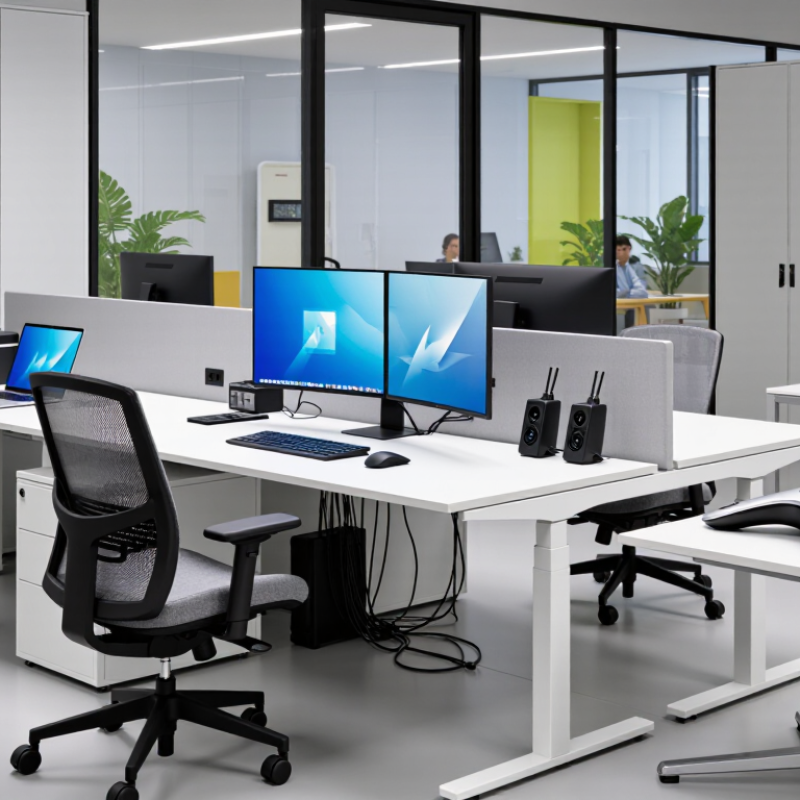
Table of Contents
[Hide]
What Counts as Office Equipment in 2026? Classify Devices by Workplace Function
In 2026, office equipment is easiest to identify by the work it supports. A laptop, desktop computer, monitor, keyboard, and headset belong to the computing category. Video cameras, microphones, conference displays, and desk phones support communication and meetings. These devices may sit in different rooms, but they serve the same workplace function.
Document equipment includes printers, scanners, shredders, and paper-handling machines. It remains useful where signed forms or physical records are common. It may be less central in a mostly digital office. That distinction matters. Shared routers, access points, and backup drives support connectivity and data storage, while security cameras and access-control devices help manage workplace access. Ergonomic equipment, such as adjustable monitor stands and task lighting, supports everyday work comfort. It depends.
Not every office purchase counts as equipment. Paper, pens, and printer toner are consumable supplies; software is a digital service or tool. Furniture is often listed separately, though some organizations group desks and chairs with workplace equipment. The boundary is not always neat. A docking station, for example, may be treated as computer equipment or as a general office accessory. For a useful inventory, record each item’s function, location, condition, and responsible team. That makes planning clearer, even when categories overlap.
What Are the Top Types of Office Equipment in 2026? — What Counts as Office Equipment in 2026? Classify Devices by Workplace Function
| Workplace Function | Equipment Type | Common Examples | Primary Use | Typical 2026 Capabilities | Practical Considerations |
|---|---|---|---|---|---|
| Computing and productivity | Computers and mobile work devices | Desktop computers, laptops, thin clients, and tablets | Run workplace applications, create documents, manage data, and access business systems. | Support web-based and installed software, video meetings, cloud services, and common workplace peripherals. | Consider operating-system support, security updates, accessibility, memory and storage needs, and device lifecycle. |
| Visual work and collaboration | Displays and interactive screens | Computer monitors, presentation displays, and interactive whiteboards | Show work materials, support presentations, and enable shared review or annotation. | Common features include high-definition output, digital inputs, screen sharing, and touch interaction on suitable models. | Check connection compatibility, viewing distance, mounting requirements, room lighting, and power consumption. |
| Document production | Printers and multifunction devices | Laser and inkjet printers, copiers, scanners, and all-in-one devices | Print, copy, scan, and route paper documents into digital workflows. | Network printing, duplex output, scan-to-email or scan-to-folder, and document-feeding options are common capabilities. | Assess print volume, consumables, secure release, paper handling, maintenance, and access to scanned files. |
| Connectivity and communications | Network and voice equipment | Routers, switches, wireless access points, desk phones, and headsets | Connect devices and users to local networks, internet services, and voice communication. | May support wired and wireless access, network segmentation, quality-of-service settings, and internet-based calling. | Plan for coverage, capacity, configuration security, software updates, and compatibility with the organization’s network. |
| Meetings and remote collaboration | Audio and video conferencing equipment | Webcams, conference cameras, microphones, speakers, and room systems | Enable in-person, hybrid, and remote meetings with shared audio and video. | Typical functions include camera framing, noise reduction, echo control, and connection to conferencing software. | Room size, microphone coverage, acoustics, privacy controls, and software compatibility affect performance. |
| Document handling and administration | Document processing equipment | Paper shredders, label printers, postage meters, and document scanners | Prepare, organize, digitize, dispatch, or securely dispose of office documents. | Features vary by device and can include automatic document feeding, batch processing, adjustable security levels, or label templates. | Match capacity and security features to document sensitivity, workload, records policies, and applicable disposal requirements. |
| Power and device readiness | Power protection and charging equipment | Uninterruptible power supplies, surge protectors, docking stations, and charging hubs | Provide power continuity or convenient charging and connection for workplace devices. | Depending on the equipment, capabilities may include battery backup, surge protection, port expansion, or multi-device charging. | Check electrical load, outlet requirements, battery replacement guidance, cable management, and device charging standards. |
| Access and workplace security | Security and access devices | Badge readers, access-control terminals, and security cameras | Help manage entry to work areas and monitor designated spaces. | Systems may record access events, manage permissions, or provide video monitoring when configured for those purposes. | Consider privacy, data retention, access permissions, physical placement, and applicable workplace and privacy rules. |
Related Posts
-
What Are the Top 10 Office Solutions for Global Buyers?
-
What Are the Top Office Solutions for Global Buyers?
-
Why Is Office Equipment Important for Businesses?
-
What Is Office Equipment and What Types Are Available?
-

Top 10 Office Products in China You Must Know?
-
2026 How to Choose the Best Office Equipment for Your Business?